Tutorial
An example case is provided under /test_cases/patient_example, allowing you to follow along.
v1.0.0 — Base module
Window Manipulation
Hold RMB to adjust windowing; press R to reset.
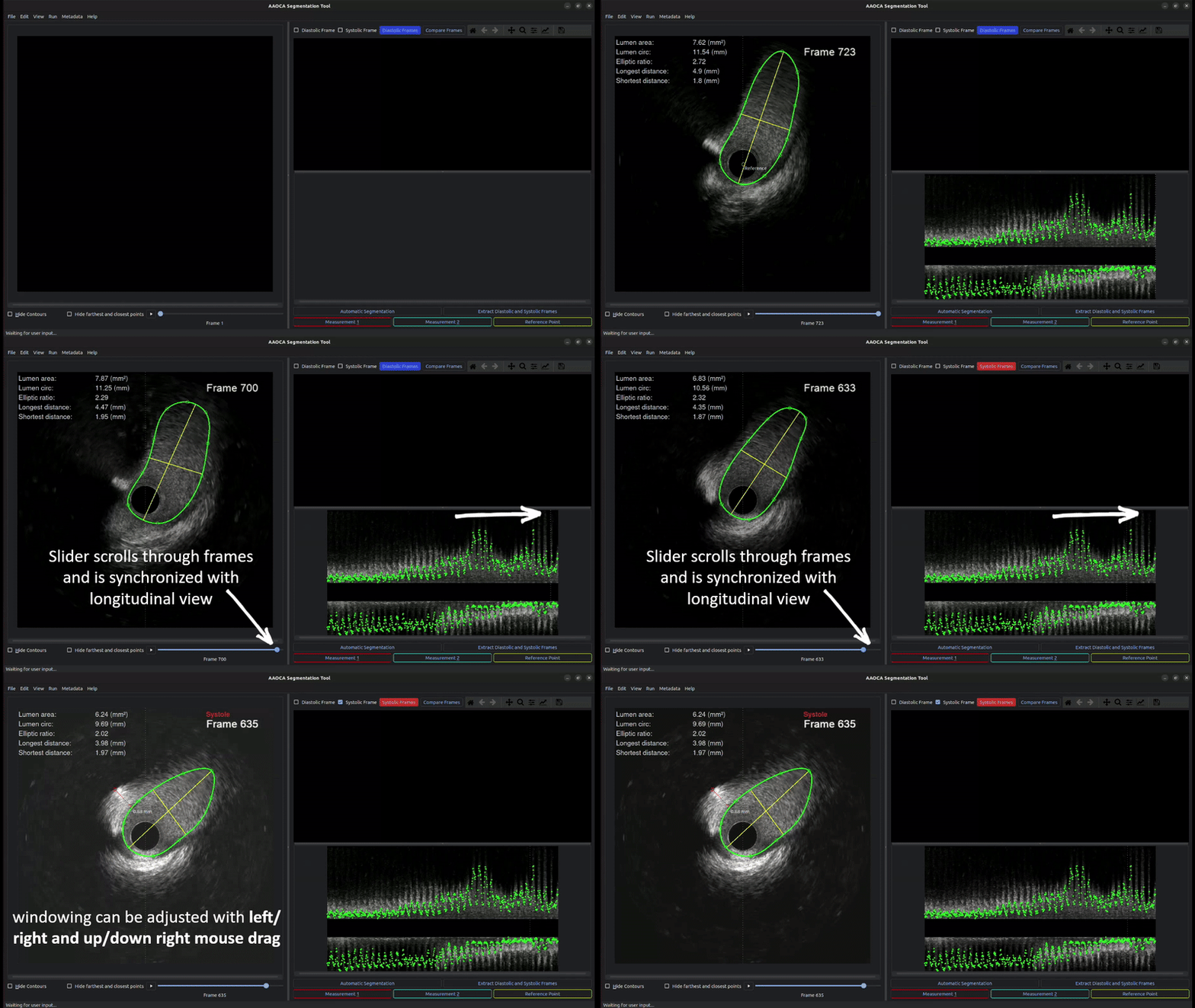
Contour Manipulation
Open the IVUS/OCT data file via File → Open or Ctrl+O.
Click
Automatic Segmentationto pre-segment the lumen in all frames (optional). Different ML models can be specified inconfig.yaml.Use A and D or MW to navigate through frames (or use the slider below the image).
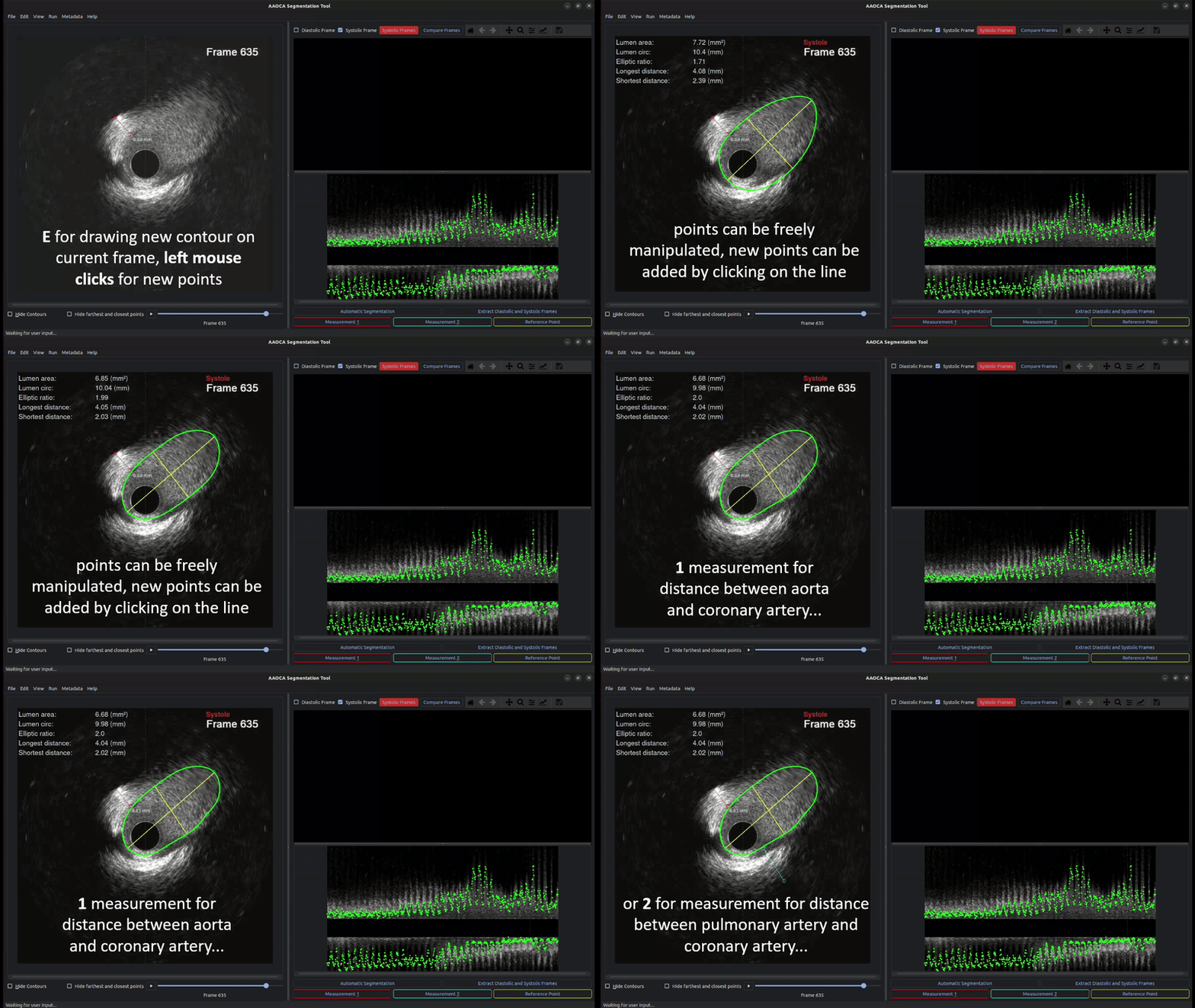
Press E to draw a new contour by left-clicking to place points. Close the contour by clicking on the initial point. Drag existing points to adjust; click on the contour line to add new points.
Press Ctrl+Z to undo the last action.
Gating Module
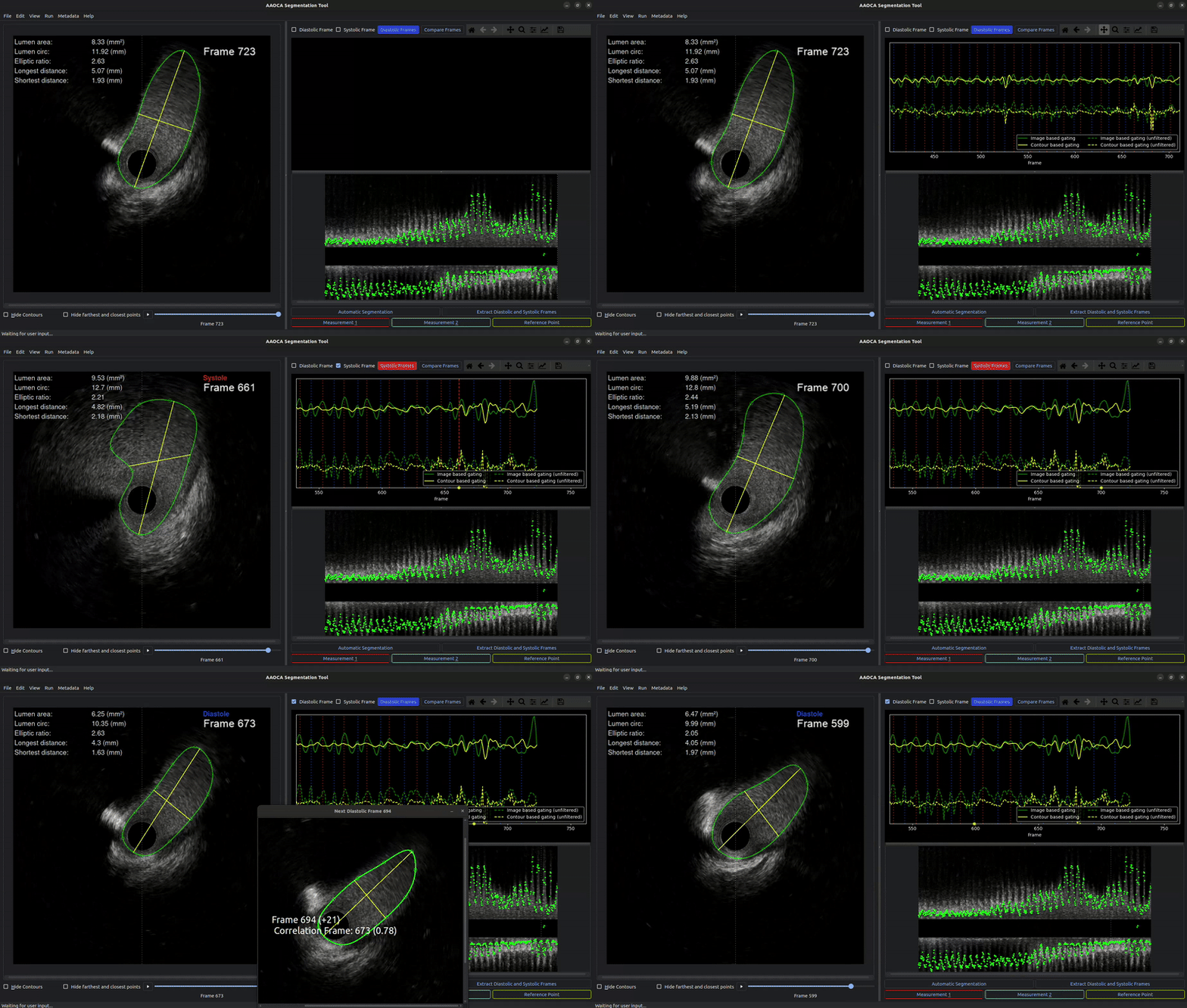
Gating analyzes both image-derived metrics (pixel-wise correlation, blurriness) and vector-based contour measurements (distance and direction from the image center to each contour centroid) to identify diastolic and systolic frames.
Two curves are displayed:
Image-based curve (green): Represents correlation peaks and minimal blurriness.
Contour-based curve (yellow): Reflects extrema in the vector measurements (alternating peaks and valleys for systolic/diastolic positions).
A Butterworth filter (passband: 45-180 bpm) smooths each curve; the unfiltered signal is shown as a dotted line beneath.
Interactive Gating Interface:
Click
Gatingto compute the gating signal. An automatic estimate for systolic and diastolic phases is set based on overlapping peaks.Specify the frame interval for gating and whether peaks should be treated as maxima or extrema.
Zoom & Pan: zoom into the plot and drag marker lines to adjust thresholds, or remove unwanted markers by dragging them downward.
Click
Compare Framesto open the nearest proximal frame for the selected phase (systole or diastole).Press Alt+Delete to delete all gating results and start over.
Press Alt+P to plot results for gated frames.
v1.1.x — Full Segmentation
Version 1.1.0 and higher add the ability to segment EEM, calcification, and side branches, following the same interaction style as for lumen contours. Clicking on any contour in the image automatically sets it as the active contour.
Note
Segmentation models are currently only trained for lumen contours. Additional models for all contour types will be added in future versions.
v1.2.0 — OCT Support
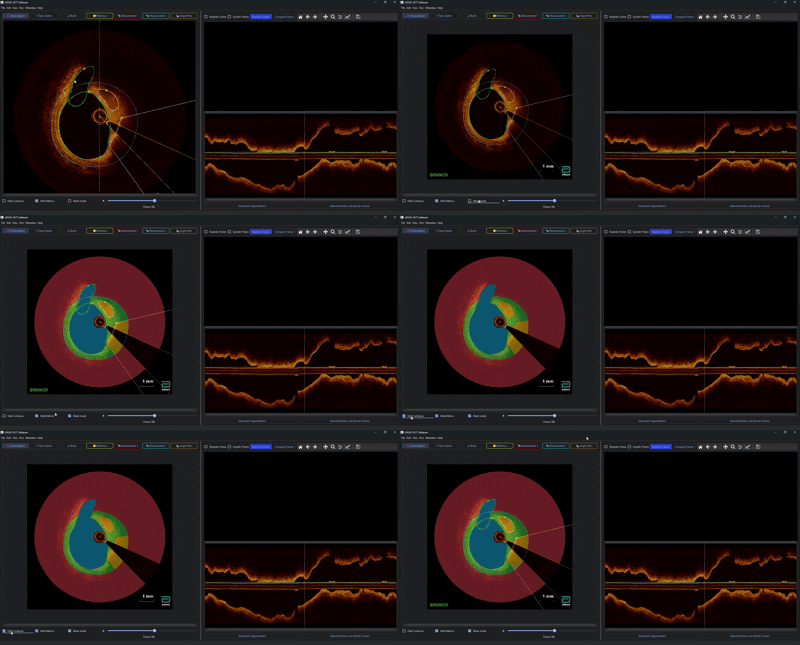
Since version 1.2.0, OCT images can be loaded and additional contouring functionalities are available.
Example: Catheter angle and lumen/EEM contouring
First, a catheter angle is added from the toolbar. Then a lumen contour is drawn as a closed spline, followed by an EEM contour. The EEM contour is given an uncertain region between a start point (yellow) and end point (red) by double-clicking. Zoom via mouse scroll is also demonstrated.
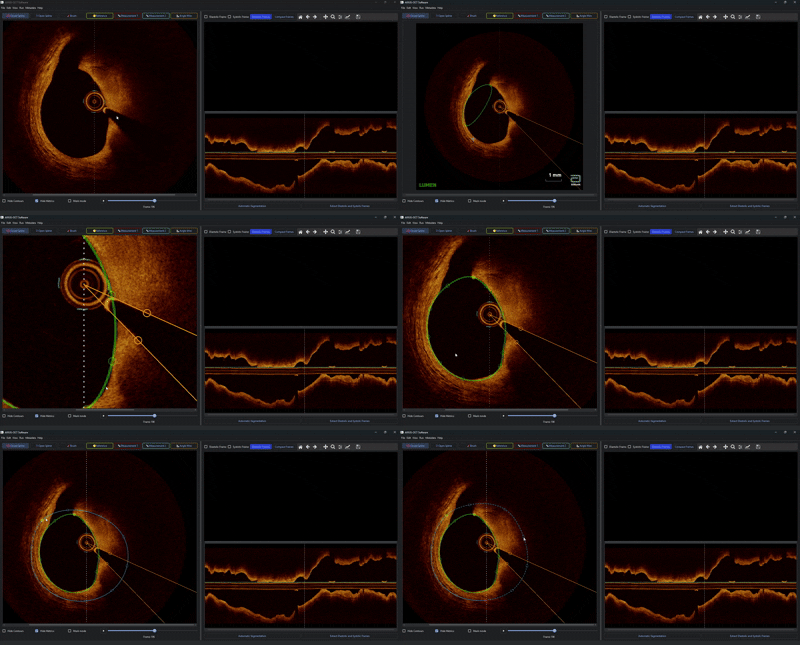
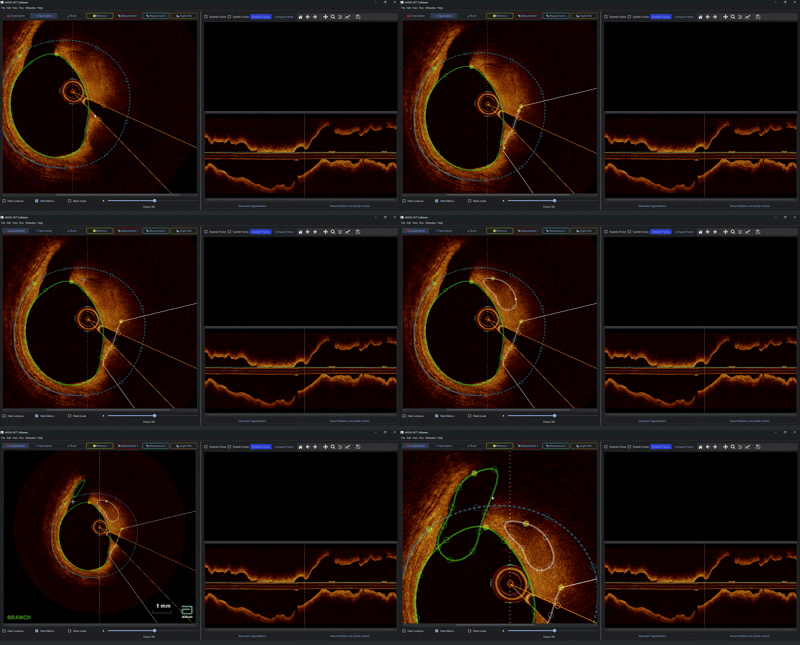
Example: Open spline for calcium and side branch
An open spline is created for a calcium contour (open splines automatically calculate the angle from the lumen center to the start and end points). Points are removed with RMB. Using Ctrl+7 and selecting closed spline, a second calcium contour is drawn. Finally, a side branch contour is added.
Example: Mask mode and hiding contours
The display can switch between normal and mask mode (with pre-applied contour layering logic). Contours can also be hidden via the corresponding checkbox.